The SEPA cancellation is displayed in the overview mask of the SEPA cancellations with the status Created or In process.
You have prepared your security medium.
|
More information on how to select multiple orders can be found in the sections Selecting several list elements (checkboxes) and Grouping multiple list elements. |

|
1. |
Use the checkboxes in the left-hand mask area to select all SEPA cancellations that you want to send. |
||||||||
|
2. |
In the lower mask area, click on Send. |
||||||||
|
3. |
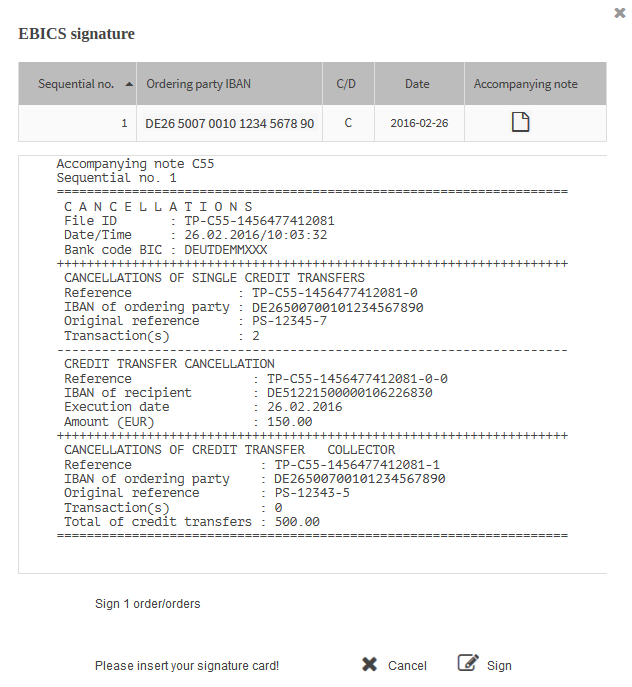
The mask of the security plugin opens, showing you the data of the cancellation. |
||||||||
|
|

|
||||||||
|
4. |
To view and/or save the accompanying note for the cancellation, click on |
||||||||
|
5. |
To continue with the signing of the cancellations, click on Sign. |
||||||||
|
6. |
Authenticate yourself with your security medium.
|
 in the column